Skip to content
Saturday, June 20, 2026
MALIKA KAROUM METAVERSE

MALIKA KAROUM METAVERSE

– THE NEW WEB 3.0 FUTURE –

  • Definitions of Metaverse
  • Malika Karoum: Artificial Intelligence
  • Malika Karoum: ChatGPT
  • Malika Karoum Metaverse
    • Metaverse Digital Virtual Environment
    • A FUTURE METAVERSE
    • METAVERSE -THE NEW FUTURE-
    • Art – The Next Generation
    • The New Web 3.0
    • Metaverse project
    • What are Non Fungible Tokens (NFT-tokens)?
    • What are NFTs?
  • Malika Karoum Media

4 Ways to Change Your User Account Type in Windows 10

Malika Karoum Online News
June 9, 2021June 9, 2021Malika Karoum DubaiLeave a Comment on 4 Ways to Change Your User Account Type in Windows 10

During a fresh installation of Windows, you set up a user account that gives you full access to your computer. But if you’re planning to share your PC with someone else, you probably wouldn’t want them to have the same level of access as you do.

Apart from creating multiple users, Windows 10 also allows you to limit what other people can do on your shared PC by providing multiple account types, namely Standard User and Administrator. Here, we’ll be taking a look at four different ways to switch between these account types.

Windows 10 Standard User vs. Administrator: What’s the Difference?

The Administrator account gives you unrestricted access to everything that’s on your system. In contrast, you cannot use a Standard user account to manage system files or install any new applications on the computer.

It doesn’t end there. Existing programs that require administrator privileges cannot be operated with a Standard account, either. You cannot adjust any setting that affects the whole PC, like creating a new user account.

When you’re sharing your PC with someone else, it’s reasonable to have these restrictions in place. Of course, if you trust them enough, you can grant administrator privileges to their account too.

Any additional users that you create in Windows are standard accounts by default. However, as long as you’re logged in as an administrator, you can provide elevated permissions by simply changing the account type.

1. Change Account Type on Windows 10 from Settings

The Windows 10 Settings app has become the go-to destination to personalize your computer. It gives you access to most of the basic settings you need, unlike the Control Panel, which can overwhelm new users. Therefore, this is the method that most people prefer for changing the account type.
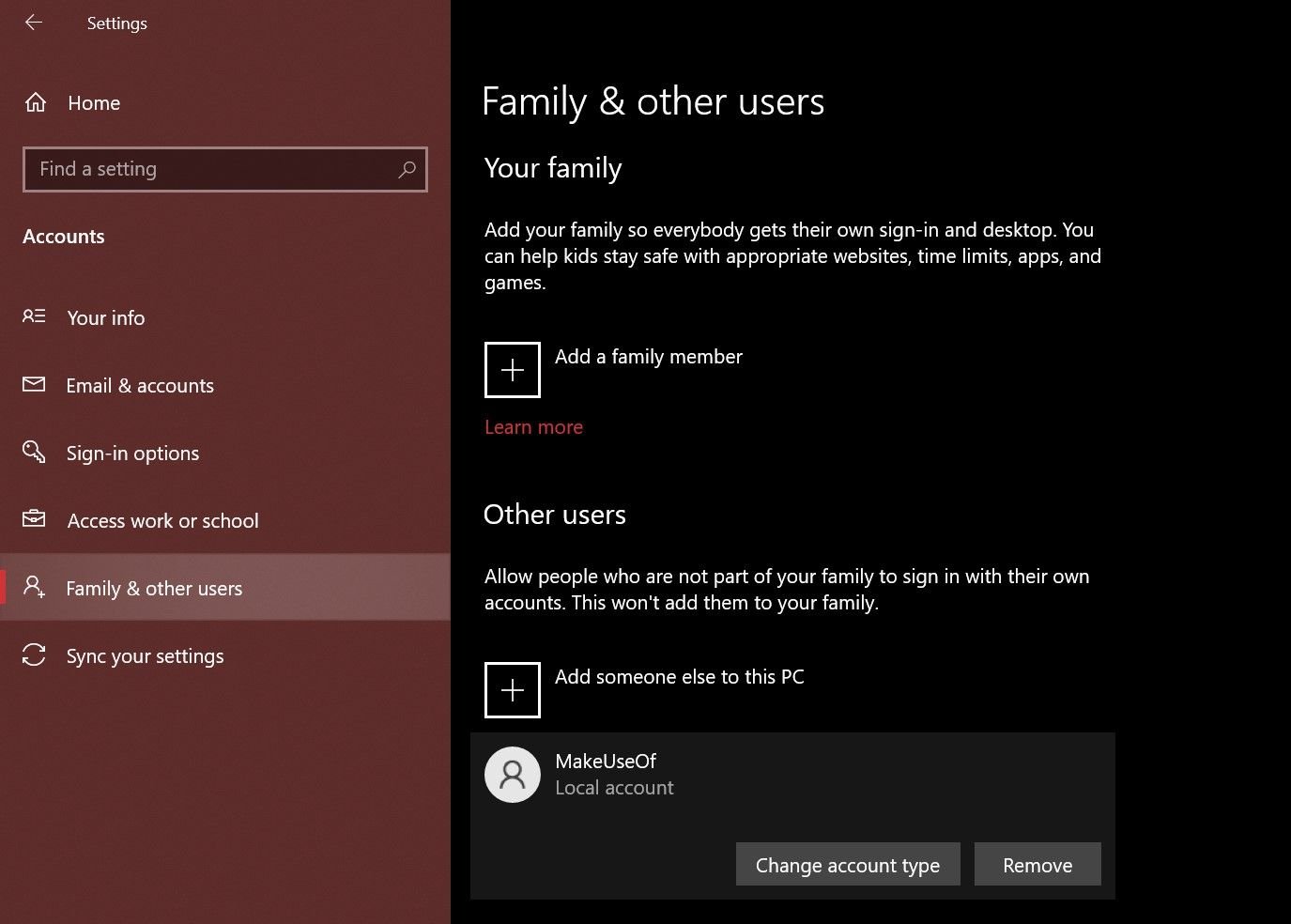
  1. Press Windows Key+ I to open the Settings panel.
  2. Next, head to Accounts > Family & other users.
  3. Look under Other users and select the account that you want to change privileges for. Now, click on Change account type.
  4. You’ll get a popup on your screen showing the current permissions of the selected user account. Click on it and choose either Administrator or Standard User to make the changes accordingly.
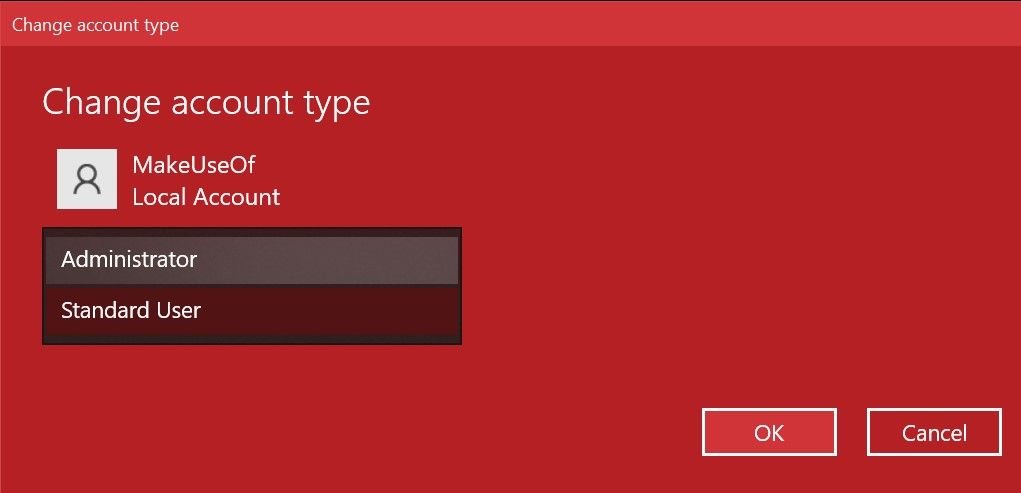
Make sure to click OK to apply these changes. You can now log in to this account without losing administrator privileges. Pretty straightforward, right?

2. Switch Account Group in Windows 10 Using Netplwiz

Netplwiz is a dedicated panel for managing all the user accounts on your computer. It’s a system executable that can only be accessed if you’re signed in as an administrator. Back when there wasn’t a dedicated Settings app for Windows devices, Netplwiz was a popular choice to switch between the account groups, i.e., Standard User and Administrator.
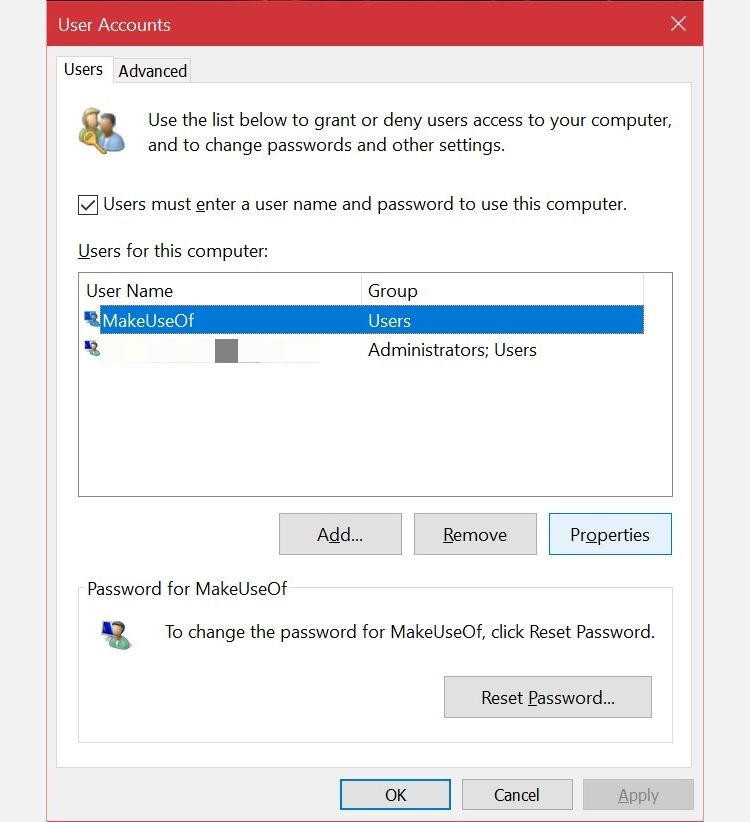
  1. Type netplwiz in the Start menu search field and click on the best match to open the following User Accounts panel. Here, you’ll be able to see all your user accounts. Select the one that you want to change privileges for and click on Properties.
  2. Now, switch to the Group Membership section, and you’ll find the available account groups. Select your desired choice and click on Apply.
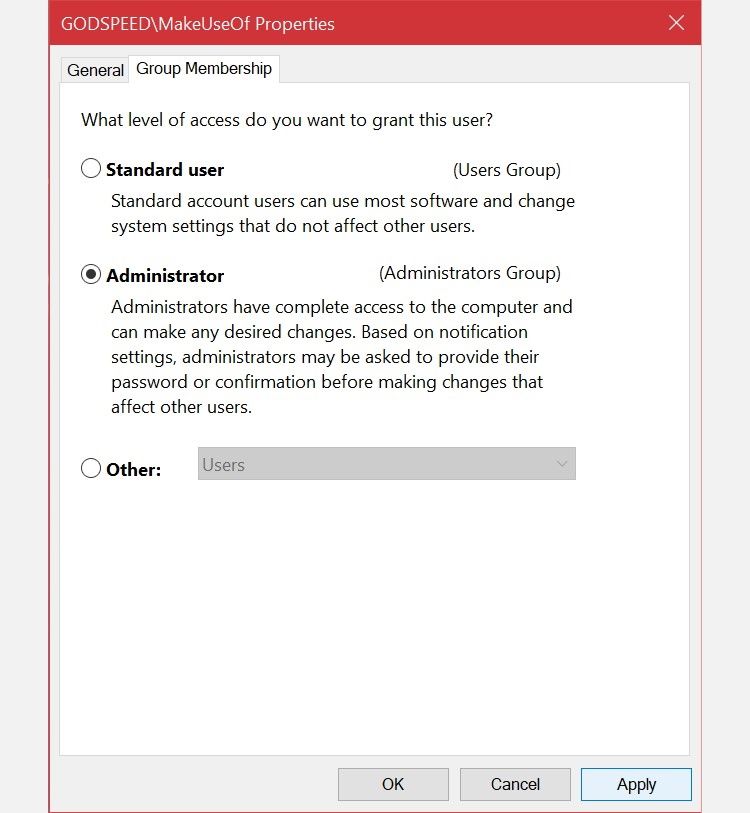
Unlike the Settings app, Netplwiz will display a third option that further expands the account types. These are for very specific permissions that you’d like to grant the other user.

For example, you can select the Power Users option, which gives the account limited administrative powers. Or, you can choose Guest if you want Windows to restrict them even further than a standard user does.

3. Switch Your Windows 10 Account Type From the Control Panel

The Control Panel has been an integral part of Windows devices for as long as one can remember. It was the de facto settings panel for Windows computers until the introduction of the dedicated Settings app in Windows 10.

It still has its place, since you can use it to make advanced system-level changes that the Settings app cannot currently complete. Follow these instructions to learn the old school way of changing the account type:

  1. Input control panel in the Start menu search bar and select the Best Match.
  2. Select Change account type (this option has a shield icon).
  3. Next, select the account you want to change the permissions for. You’ll have multiple options for the selected account. Click Change the account type to continue.
  4. Here, select one of the two available choices, then Change Account Type to apply the changes.
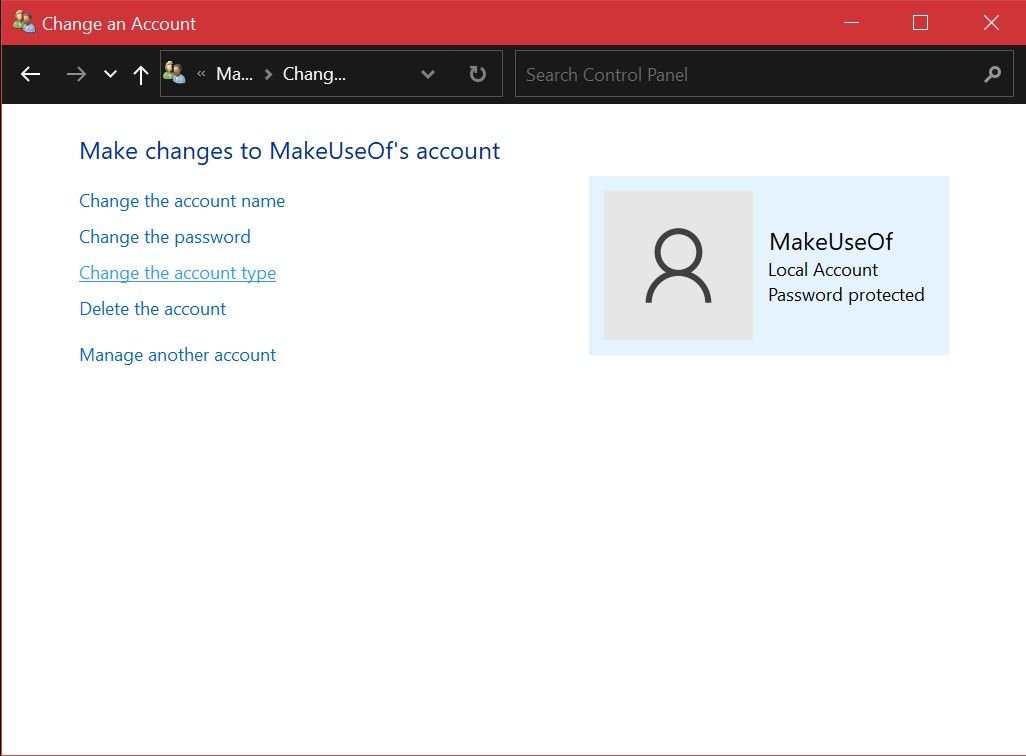
You may be familiar will all these menu items if you’ve used legacy versions of Windows. Regardless, it’s mostly a straightforward process.

4. Use the Command Prompt to Change Account Type in Windows 10

Command Prompt, also known as CMD, is the built-in command-line interpreter on Windows PCs.

With the right CMD commands, you can perform various tasks on your computer. The program is basically a coder’s paradise, but you don’t need coding skills to change an account type with a simple command line. The following two steps are all you need to keep in mind.

  1. Input command prompt in the Start menu search bar. Select Run as administrator instead of launching it directly.
  2. To change the account type to administrator, type the following command and hit Enter.
    net localgroup administrators [USERNAME] /add
  3. To switch back to standard user, use this line of code instead, and press Enter on your keyboard.
    net localgroup administrators [USERNAME] /del
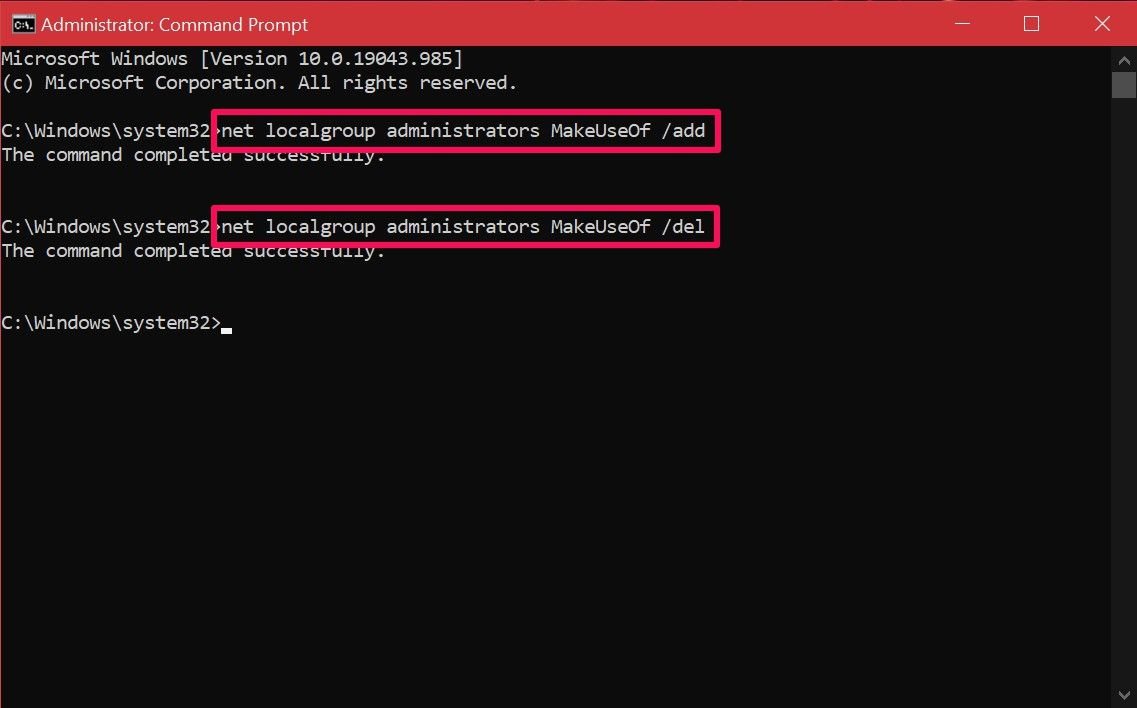
If you get an error saying access is denied upon executing the command, it indicates that you aren’t running CMD as an administrator. As long as you know this command, you don’t have to fiddle around with the system menus like the other methods. Hopefully, you’re able to get the hang of it fairly quickly.

Related: A Beginner’s Guide to the Windows Command Prompt

Switch Windows 10 User Account Types the Easy Way

As you can see, you’re not limited in terms of options. Now that you’re familiar with all the various methods, it’s up to you to try them out individually and find the best one. Depending on your use case, this may vary. Some users may prioritize the Netplwiz method since it allows them to fine-tune the permissions further, whereas others would be more than happy with any one of these methods.


MUO – Feed

Tagged AccountChangeTypeUserWaysWindows

Post navigation

How to Embed Google Forms and Collect Survey Data in WordPress
Report: Facebook’s First Smartwatch Could Feature Two Detachable Cameras

Related Posts

You Need These 13 Android Apps to Be Ready for Halloween

October 21, 2017Malika Karoum Dubai

9 Ways to Reduce Your Ethereum Gas Fees

June 15, 2022Malika Karoum Dubai

Opera Shuts Down Its VPN App for Android and iOS

April 19, 2018Malika Karoum Dubai

RSS Malika Karoum Global News

  • Mitchell leads Ticats to 41-27 home win over Lions
    Bo Levi Mitchell tied his career high with five TD passes to lead the Hamilton Tiger-Cats past the B.C. Lions 41-27 on Friday night.
    Globalnews Digital
  • WATCH: Global National – June 19
    Watch the full broadcast of Global National with Dawna Friesen
    Globalnews Digital
  • Calgary man with ‘horrific record for violence’ sentenced to 4 years in transit attack
    Curtis Baker-Spence has been sentenced to four years for his role in the attack. With credit for time spent behind bars, he has 28 months left on his sentence.
    Elissa Carpenter
  • B.C. mayor calls FIFA a ‘bunch of arseholes’ after they reject brewery street party
    Patina Brewing was planning a family-friendly block party for the Canada versus Switzerland match on Wednesday. They wanted to shut down the street.
    Taya Fast
  • Vancouver shines for Team Canada’s 1st game at BC Place: ‘This was the best’
    Victoria residents Dallas Nicholls and Nahoa Kahakauwila attended the game at BC Place and said the atmosphere inside and outside BC Place was electric.
    Amy Judd
  • Suspected illegal campfire blamed for Kalamoir Park wildfire as safety concerns remain
    While the wildfire has now been extinguished, officials say significant hazards remain throughout the park, which remains closed to the public.
    Klaudia Van Emmerik
  • Environment Canada issues tornado watch for Prince George region
    Environment Canada says in a Friday afternoon update that 'significant damage or destruction to infrastructure, homes and the natural environment is possible.'
    Amy Judd
  • Provincial AI strategy could protect residents, scale Sask. workforce: advocates
    Advocates in Saskatchewan say a provincial artificial intelligence strategy could help protect residents and strengthen the workforce.
    Vanessa Tiberio
  • Museum at former residential school in Portage la Prairie to expand
    Executive Director Lorraine Daniels says the new building centered on cultural teachings and a dock planned for the riverbank are ways for survivors to reclaim the space.
    Katherine Dornian
  • Family prepares to bury 5 children killed in devastating Ontario crash
    Five children killed in a crash in rural Ontario last week will be laid to rest Saturday, as family, friends and community members gather to mourn the siblings.
    Prisha Dev

MALIKA KAROUM METAVERSE 2025

  • I Watched A 100x AI Developer Code… This Is Pure Insanity 🤯
    June 14, 2026 by Dr. Mfon Akpan
    I just reacted to David Ondrej’s interview with Pietro (former Anthropic engineer and founder of Magic Path), and honestly... software development will NEVER be the same.Watch as Pietro demonstrates how he uses OpenAI's Codex to automate 99% of his workflow, completely ditching traditional tools like Claude Code and Cursor. From coding entire interactive apps from […]
  • The Death of the Chatbot: Why OpenAI Just Merged ChatGPT & Codex
    June 7, 2026 by Dr. Mfon Akpan
    Everything we thought we knew about AI productivity just changed. OpenAI has officially merged its consumer ChatGPT team and its agentic-coding Codex team into a single unified platform.This isn't just a UI update—it’s the start of the "Execution Era." We are moving from AI that gives you advice to AI that does the work for […]
  • Google’s Massive AI Shift: Meet "Spark," the Agent That Works While You Sleep!
    May 31, 2026 by Dr. Mfon Akpan
    Google just changed the game at I/O 2026. Forget standard chatbots—Gemini Spark is here, and it’s a fully proactive AI agent designed to handle long-horizon tasks in the background, even when your computer is off.In this video, we break down:What is Gemini Spark and how does it differ from traditional AI?The "Antigravity" harness: How Google […]
  • Google I/O 2026: Everything You Need to Know in 10 Minutes! 🤯
    May 24, 2026 by Dr. Mfon Akpan
    Everything announced at Google I/O 2026! Get the quick summary on Android 16, the latest Gemini AI models, new smart features, and upcoming Google ecosystem updates. Don't forget to LIKE and SUBSCRIBE to stay up to date with the latest in tech!#GoogleIO2026 #Tech #Android16 #Gemini
  • Inside Thinking Machines: Next-Gen Interaction Models
    May 17, 2026 by Dr. Mfon Akpan
    How will we actually work alongside the next generation of AI? In this video, we go inside "thinking machines" to explore the next-gen interaction models that are reshaping human-AI collaboration. As AI models shift from simple chat interfaces to complex, reasoning-based systems, our approach to collaboration must scale. We break down the structural frameworks, technical […]
  • ChatGPT is BACK with SWAGGER! (The Ultimate AI Game Changer)
    May 10, 2026 by Dr. Mfon Akpan
    The wait is over—ChatGPT is back and it’s bolder than ever! In this video, we dive into the latest updates, the new "swagger" in its responses, and why this is a total game changer for creators and tech enthusiasts alike.We’re breaking down:The New Persona: How the AI's tone has shifted to be more confident and […]
  • ChatGPT Codex 5.5: The Greatest AI Coding Tool Ever? 🚀
    May 3, 2026 by Dr. Mfon Akpan
    Is this the end of manual coding?In today’s video, we are diving deep into ChatGPT Codex 5.5, the latest evolution in AI-driven development. Whether you are a seasoned software engineer or just starting your coding journey, this tool is a total game-changer for productivity, debugging, and rapid prototyping.In this video, you will learn:✅ Key Features: […]
  • GPT-5.5 IS HERE! The New OpenAI Model Everyone’s Talking About!
    April 26, 2026 by Dr. Mfon Akpan
    The wait is finally over! OpenAI has just shocked the world with the release of GPT-5.5, a next-generation frontier model that is redefine the boundaries of artificial intelligence. In this video, we break down every single major announcement from the launch, explaining exactly why this new model is the most discussed topic in technology right […]
  • DARKCODE: The Ultimate Hacking & Programming Guide (2026)
    April 19, 2026 by Dr. Mfon Akpan
    Welcome to the frontier of digital mastery. Whether you're a seasoned developer or just starting your journey into the shadows of the web, DARKCODE is your definitive roadmap to understanding the architecture of the modern world.In this comprehensive guide, we strip away the jargon to give you a clear, high-energy look at the intersection of […]
  • Meeting with Gael Gadah 📱
    April 12, 2026 by Dr. Mfon Akpan
    Most businesses do not fail overnight. They bleed slowly from bad decisions, weak systems, and no clear strategy.In this episode, I sit down with Gael Gadah to break down what it really takes to turn a struggling business around. This is not theory. This is execution.We talk about: • How to identify what is actually […]
News Portal | Theme: News Portal by Mystery Themes.